

如何在NVIDIA RTX PC上開始使用視覺生成式AI
這篇NVIDIA部落格文章提供如何在NVIDIA RTX PC上開始使用視覺生成式AI的指南,強調本地處理的優勢,並介紹ComfyUI作為進階創意工作流程的工具。
Artificial Intelligence Computing Leadership from NVIDIA

How to Get Started With Visual Generative AI on NVIDIA RTX PCs
AI-powered content generation is now embedded in everyday tools like Adobe and Canva, with a slew of agencies and studios incorporating the technology into their workflows. Image models now deliver photorealistic results consistently, video models can generate long and coherent clips, and both can follow creative directions.
Creators are increasingly running these workflows locally on PCs to keep assets under direct control, remove cloud service costs and eliminate the friction of iteration — making it easier to refine outputs at the pace real creative projects demand.
Since their inception, NVIDIA RTX PCs have been the system of choice for running creative AI due to their high performance — reducing iteration time — and the fact that users can run models on them for free, removing token anxiety.
With recent RTX optimizations and new open-weight models introduced at CES earlier this month, creatives can work faster, more efficiently and with far greater creative control.
How to Get Started
Getting started with visual generative AI can feel complex and limiting. Online AI generators are easy to use but offer limited control.
Open source community tools like ComfyUI simplify setting up advanced creative workflows and are easy to install. They also provide an easy way to download the latest and greatest models, such as FLUX.2 and LTX-2, as well as top community workflows.
Here’s how to get started with visual generative AI locally on RTX PCs using ComfyUI and popular models:
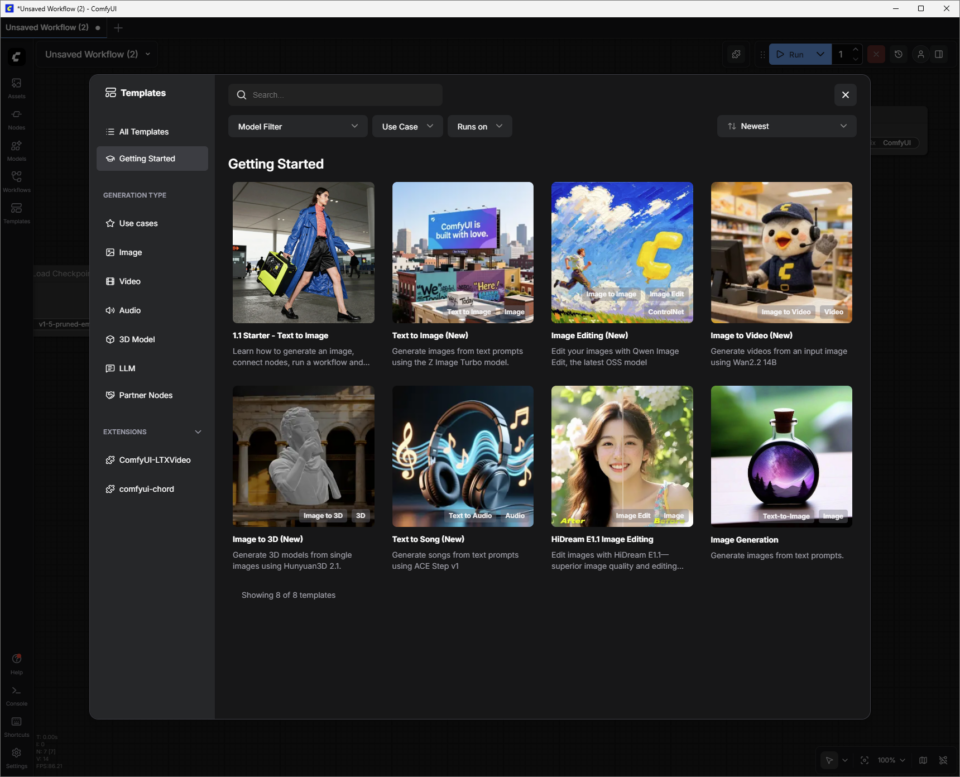
Change the prompt and run it again to enter more deeply into the creative world of visual generative AI.
Read more below on how to dive into additional ComfyUI templates that use more advanced image and video models.
Model Sizes and GPUs
As users get more familiar with ComfyUI and the models that support it, they’ll need to consider GPU VRAM capacity and whether a model will fit within it. Here are some examples for getting started, depending on GPU VRAM:

Generating Images

To explore how to improve image generation quality using FLUX.2-Dev:
From the ComfyUI “Templates” section, click on “All Templates” and search for “FLUX.2 Dev Text to Image.” Select it, and ComfyUI will load the collection of connected nodes, or “Workflow.”
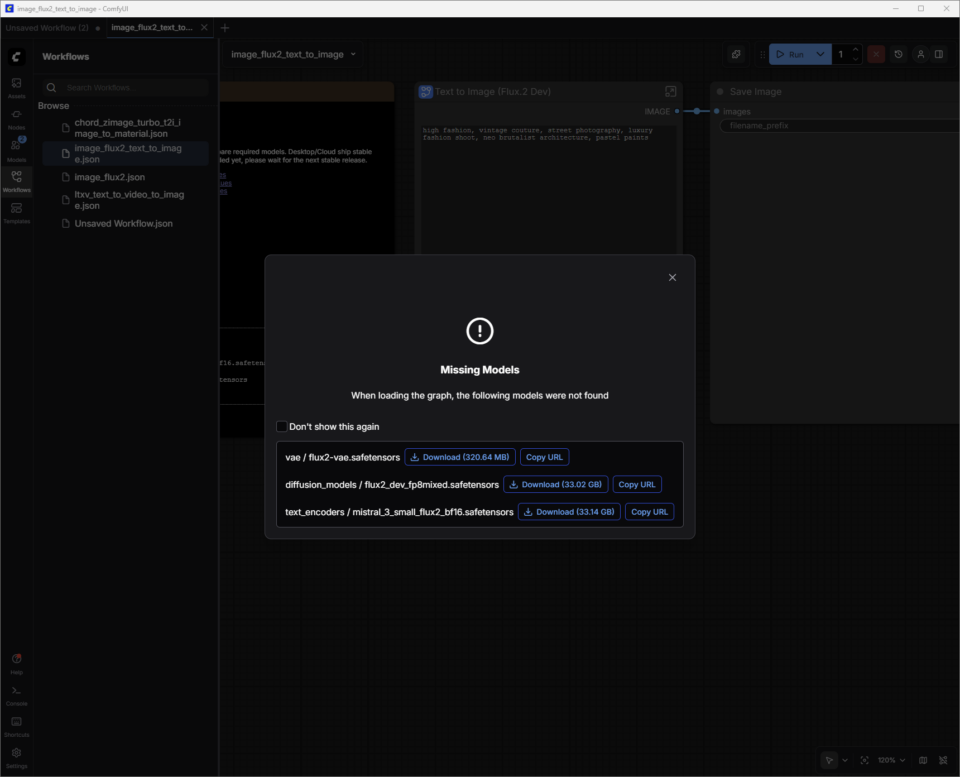
FLUX.2-Dev has model weights that will need to be downloaded.
Model weights are the “knowledge” inside an AI model — think of them like the synapses in a brain. When an image generation model like FLUX.2 was trained, it learned patterns from millions of images. Those patterns are stored as billions of numerical values called “weights.”
ComfyUI doesn’t come with these weights built in. Instead, it downloads them on demand from repositories like Hugging Face. These files are large (FLUX.2 can be >30GB depending on the version), which is why systems need enough storage and download time to grab them.
A dialog will appear to guide users through downloading the model weights. The weight files (filename.safetensors) are automatically saved to the correct ComfyUI folder on a user’s PC.
Saving Workflows:
Now that the model weights are downloaded, the next step is to save this newly downloaded template as a “Workflow.”
Users can click on the top-left hamburger menu (three lines) and choose “Save.” The workflow is now saved in the user’s list of “Workflows” (press W to show or hide the window). Close the tab to exit the workflow without losing any work.
If the download dialog was accidentally closed before the model weights finished downloading:
Prompt Tips for FLUX.2-Dev:
Learn more about FLUX.2 prompting in this guide from Black Forest Labs.
Save Locations on Disk:
Once done refining the image, right click on “Save Image Node” to open the image in a browser, or save it in a new location.
ComfyUI’s default output folders are typically the following, based on the application type and OS:
Prompting Videos
Explore how to improve video generation quality, using the new LTX-2 model as an example:
Lightrick’s LTX‑2 is an advanced audio-video model designed for controllable, storyboard-style video generation in ComfyUI. Once the LTX‑2 Image to Video Template and model weights are downloaded, start by treating the prompt like a short shot description, rather than a full movie script.
Unlike the first two Templates, LTX‑2 Image to Video combines an image and a text prompt to generate video.
Users can take one of the images generated in FLUX.2-Dev and add a text prompt to give it life.
Prompt Tips for LTX‑2:
For best results in ComfyUI, write a single flowing paragraph in the present tense or use a simple, script‑style format with scene headings (sluglines), action, character names and dialogue. Aim for four to six descriptive sentences that cover all the key aspects:
Additional details to consider adding to prompts:
Optimizing VRAM Usage and Image Quality
As a frontier model, LTX-2 uses significant amounts of video memory (VRAM) to deliver quality results. Memory use goes up as resolution, frame rates, length or steps increase.
ComfyUI and NVIDIA have collaborated to optimize a weight streaming feature that allows users to offload parts of the workflow to system memory if their GPU runs out of VRAM — but this comes at a cost in performance.
Depending on the GPU and use case, users may want to constrain these factors to ensure reasonable generation times.
LTX-2 is an incredibly advanced model — but as with any model, tweaking the settings has a big impact on quality.
Learn more about optimizing LTX-2 usage with RTX GPUs in the Quick Start Guide for LTX-2 In ComfyUI.
Building a Custom Workflow With FLUX.2-Dev and LTX-2
Users can simplify the process of hopping between ComfyUI Workflows with FLUX.2-Dev to generate an image, finding it on disk and adding it as an image prompt to the LTX-2 Image to Video Workflow by combining the models into a new workflow:
Save with a new name, and text prompt for image and video in one workflow.
Advanced 3D Generation
Beyond generating images with FLUX.2 and videos with LTX‑2, the next step is adding 3D guidance. The NVIDIA Blueprint for 3D-guided generative AI shows how to use 3D scenes and assets to drive more controllable, production-style image and video pipelines on RTX PCs — with ready-made workflows users can inspect, tweak and extend.
Creators can show off their work, connect with other users and find help on the Stable Diffusion subreddit and ComfyUI Discord.
#ICYMI — The Latest Advancements in NVIDIA RTX AI PCs
💻NVIDIA @ CES 2026
CES announcements included 4K AI video generation acceleration on PCs with LTX-2 and ComfyUI upgrades. Plus, major RTX accelerations across ComfyUI, LTX-2, Llama.cpp, Ollama, Hyperlink and more unlock video, image and text generation use cases on AI PCs.
📝 Black Forest Labs FLUX 2 Variants
FLUX.2 [klein] is a set of compact, ultrafast models that support both image generation and editing, delivering state-of-the-art image quality. The models are accelerated by NVFP4 and NVFP8, boosting speed by up to 2.5x and enabling them to run performantly across a wide range of RTX GPUs.
✨Project G-Assist Update
With a new “Reasoning Mode” enabled by default, Project G-Assist gains an accuracy and intelligence boost, as well as the ability to action multiple commands at once. G-Assist can now control settings on G-SYNC monitors, CORSAIR peripherals and CORSAIR PC components through iCUE — covering lighting, profiles, performance and cooling.
Support is also coming soon to Elgato Stream Decks, bringing G-Assist closer to a unified AI interface for tuning and controlling nearly any system. For G-Assist plug-in devs, a new Cursor-based plug-in builder accelerates development using Cursor’s agentic coding environment.
Plug in to NVIDIA AI PC on Facebook, Instagram, TikTok and X — and stay informed by subscribing to the RTX AI PC newsletter.
Follow NVIDIA Workstation on LinkedIn and X.
See notice regarding software product information.
All NVIDIA News
Flight Controls Are Cleared for Takeoff on GeForce NOW
NVIDIA Named Best Place to Work in Tech and AI by Glassdoor

‘Largest Infrastructure Buildout in Human History’: Jensen Huang on AI’s ‘Five-Layer Cake’ at Davos

Survive the Quarantine Zone and More With Devolver Digital Games on GeForce NOW
AI’s Next Revolution: Multiply Labs Is Scaling Robotics-Driven Cell Therapy Biomanufacturing Labs
Corporate Information
Get Involved
News & Events
Share on Mastodon
Friend's Email Address
Your Name
Your Email Address
Comments
Send Email
相關文章