


為您的AI開發工具建立沙盒:虛擬機與Lima的實用指南
本文提供一份實用指南,介紹如何利用虛擬機和Lima來隔離AI開發工具,強調隔離潛在風險程式碼執行的重要性,以保護敏感資料。
Sandbox Your AI Dev Tools: A Practical Guide for VMs and Lima
AI coding assistants, npm, pip, and other development tools can run arbitrary code and scripts on your machine, potentially stealing SSH keys, API tokens, wallet keys, sensitive credentials and other private data without you noticing.
This guide shows you how to sandbox these tools in isolated VMs using Lima, so you can experiment and develop freely without putting your sensitive data at risk.
Jump straight to the guide, or read on for a bit of personal context.
Contents
Personal context
I’ve been having quite a bit of fun with AI assisted coding recently.
I use LLMs for a wide range of things, including discussing architecture, design choices, learning about new tools and libraries I wasn’t previously aware of, to reviewing PRs and quickly cranking out dirty prototypes.
Especially for hobby projects that are not meant to ever go into production, I enjoy playing with AI tools fast and loose, producing results quickly and not getting slowed down by annoying things such as reading code before running it 🤣.
And yeah… that’s obviously unsafe, unless it’s all contained in a sandbox!
You should never run potentially dangerous, experimental code on your main machine, since it could steal your passwords, API keys, environment variables, private keys, access to your communication tools, install services, and do all sorts of other nefarious things.
Nowadays I isolate all my devtools in VMs, and thought it might be useful to others if I put together a guide to shows how to do it. Well, here it is, and I hope it’ll be useful to you, too!
You’ll want to run the entire development environment, including the AI tool itself, inside a sandbox. This way it’s safe to install dependencies and to execute code, and unlocks other fun features like snapshots before running sketchy code, and reverting if something goes wrong.
And it’s not just AI-generated code. Node.js/npm/yarn and Python/pip are particularly troublesome because they allow any package to run arbitrary scripts on your system during installation, and install tons of additional dependencies that can do the same. This attack vector is called “supply chain attack” and it happens all the time.
Why VMs over Docker?
Virtual Machines (VMs) and Containers (i.e. Docker, Podman, containerd) are the two most practical methods for isolating development tools from your host operating system. VMs provide much stronger protection and more flexibility overall, and are better suited for co-developing with AIs.
Container runtimes share the host operating system’s kernel, which means they’re fundamentally running on the same system as your main machine, just with isolated namespaces and resource limits. This creates several security concerns:
In contrast, a VM runs its own complete operating system with its own kernel. The hypervisor (like QEMU/KVM) creates a much stronger isolation boundary. Even if malicious code completely compromises the VM, it would need to exploit the hypervisor itself to reach your host, a significantly harder target.
Furthermore, a VM enables better concurrency. It can run Docker containers, databases, web servers, multiple build processes, and background services all at once, and the AI tool can interact with everything naturally just like on a normal development machine.
Lima VM introduction
In this guide, we use Lima VM to sandbox AI and devtools. Lima is a delightful, lightweight virtual machine manager for Linux and macOS which provides easy and quick ways to create and manage VMs.
You interact with Lima through the limactl command:
Notes:
About Lima:
Lima Templates:
VMs are based on templates, which can include (build on) other templates:
Install Lima
The Lima VM docs have platform-specific installation guides.
Homebrew is recommended on macOS:
On Linux install the binary like this:
Now ensure your Lima version is up-to-date:
Getting started
In this section, we will:
Let’s dive right in!
Prepare a shared directory
We only want to share very specific host directories with the VM.
Let’s create ~/VM-Shared on the host, which we later mount into the VM at ~/Shared (with write access):
You can use that directory to easily copy files between the host and the VM, and to share project directories from the host with the VM.
Setup VM defaults
Defaults for all VMs can be defined in ~/.lima/_config/default.yaml.
Let’s enable the following:
Let’s create the default YAML file:
Notes:
Prepare easy SSH access
Lima conveniently creates default SSH configuration files for all VM instances, which makes it easy to log in with SSH (including using VS Code for a Remote-SSH session).
I recommend using a ~/.ssh/config.d/ directory on the host and have SSH include all configs there by default. That allows us to simply link the Lima-created config files there to use them.
Create the directory:
Add this as first line in your ~/.ssh/config file, to make SSH include all configs from there:
Great! After creating a new VM, we can now simply create a symlink to the Lima-generated SSH configs and use it to SSH into the instance.
Start a VM
Let’s start an Ubuntu 25.10 VM instance, named dev.
We use the internal _images/ubuntu-25.10.yaml template because it doesn’t include the automatic home directory sharing:
Notes:
Share project-specific directories
You can share additional project-specific directories between host and VM in several ways:
SSH into the VM
Create a symlink for the SSH config file and SSH into the VM:
🎉 Success!
Update services and setup bash
Let’s update the services on the instance, and configure git:
Test port forwarding
Let’s confirm that port forwarding works. We do this using a one-liner Python HTTP server (on port 7777) inside the VM, and accessing it from the host:
Everything works, yay! 🎉
Install tools and languages
This section guides you through installing several other languages and development tools, including Golang, Node.js, Python, Rust, Docker.
We can accomplish that either by installing each tool according to it’s documentation, or by using a version manager such as mise (“mise-en-place”, 22k stars on Github) which can install hundreds of tools via a simple command-line interface.
Using Mise-En-Place
First, we install mise (“mise-en-place”, 22k stars on Github) and make bash support it:
You use mise latest <tool> to see the latest versions it knows about:
Now you can install all the tools you want in a single command:
Golang
To manually install (or update) Golang in the VM, download the latest release and extract into /usr/local/go:
The Golang path needs to be in the PATH environment variable, which we have already added before.
Verify the installation:
Node.js
A good way to install a current version of Node.js in Ubuntu is by using nvm, a modern node version manager (90k stars on GitHub):
Now it’s all installed and ready to use! Check the versions like this:
Docker
Perhaps you don’t even need Docker, since Lima includes containerd and nerdctl by default. This is a Docker-compatible runtime and command-line interface that can also run images from Docker Hub:
If you do want to install Docker, the quickest way to install it by using their official get-docker.sh script:
For the group changes to take effect, exit the shell and re-login (may need a VM restart).
Verify that user is in the ‘docker’ group:
GitHub CLI
GitHub CLI provides a useful gh cli command that let’s you easily interact with GitHub and private repositories.
You can install it in the VM following the Linux installation instructions:
Warning: Authorizing GitHub CLI to access private repositories will leave an API key in the VM which could potentially be stolen by unauthorized scripts (which is what we wanted to avoid in first place by running everything in a VM).
Only authorize it with gh auth login for private repo access if you accept the risks! I personally avoid having any sensitive credentials in the VM, in particular those that allow access to private GitHub repositories.
Visual Studio Code - Remote-SSH Session
If you prefer an IDE like VS Code, you can use Remote-SSH to start a session inside the instance.
Please note that this is potentially unsafe, as explained in the Remote-SSH README:
Security Note
Using Remote-SSH opens a connection between your local machine and the remote. Only use Remote-SSH to connect to secure remote machines that you trust and that are owned by a party whom you trust. A compromised remote could use the VS Code Remote connection to execute code on your local machine.
See also this discussion on GitHub for more context and information.
If you want to connect anyway:


Now a new VS Code window opens, and sets up VS Code Server:

Then you can click “Open” and choose a folder, like Shared:

Claude Code, Codex and Gemini
Before setting up the tools, let’s create a “Hello World” directory in the Shared folder as our playground:
Claude Code
Let’s start with installing Claude Code in the VM, following the instructions in the documentation:
Install Claude Code CLI:
Start Claude:
On first start, Claude asks you to authorize it.
The docs mention support for an ANTHROPIC_API_KEY environment variable (i.e. set in .bashrc), but that did not work when I tried it; claude CLI didn’t let me skip the login process. Only after the login was done it notified me about the existing environment variable, and whether I’d prefer to use that one.
After the login, Claude Code CLI is ready to be ued in the VM! 🎉
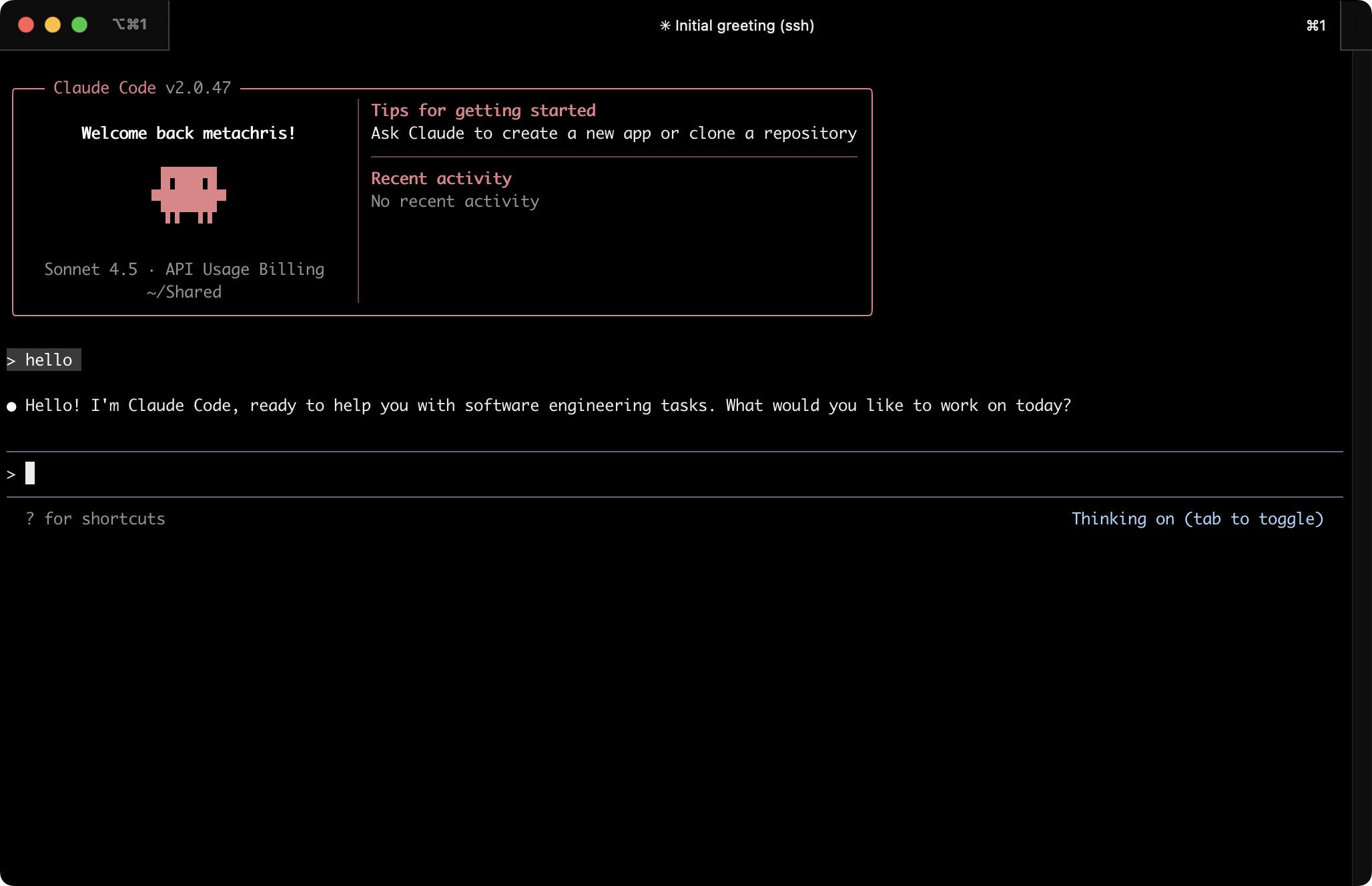
Since Claude is running in a VM, it might be permissible to run it in “dangerously skip permissions mode”, which makes it bypass all permission checks:
You could also create an alias for it and add it to your .bashrc:
Anthropic provides documentation for using Claude in VS Code, and also offer a VS Code Claude extension.
You can install the Claude extension in the VM through the Remote-SSH session window:

In contrast to the CLI tool, the authentication flow did not work through the user interface, and I had to set the ANTHROPIC_API_KEY environment variable:
Reload the VS Code window (open command palette with Shift + CMD + P and choose “Developer: Reload Window”):

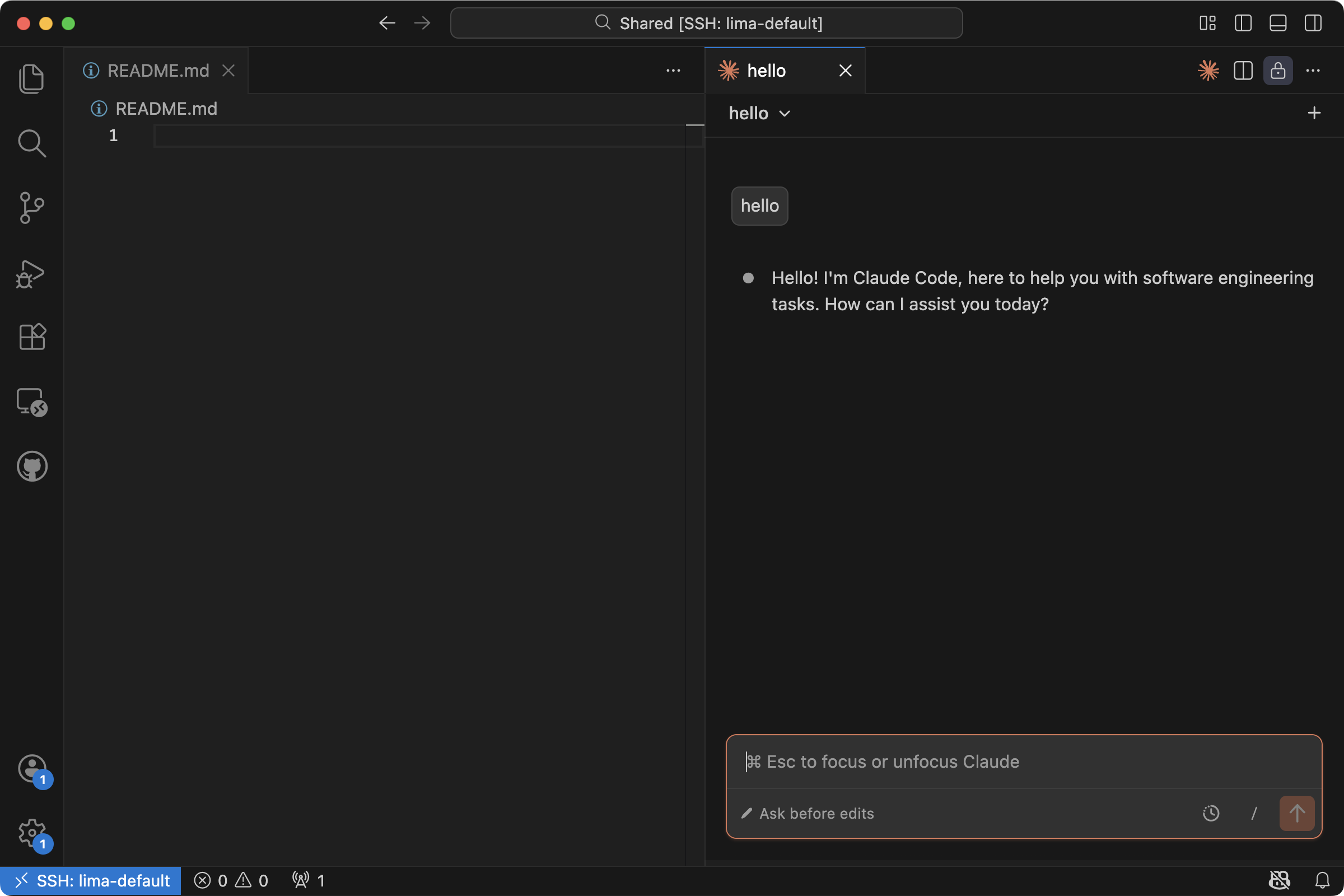
Now the VS Code Claude extension should work:
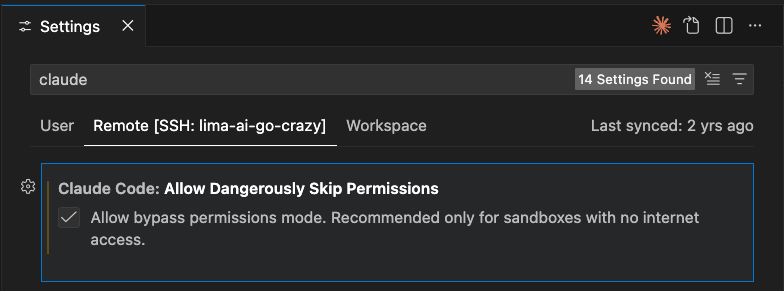
If you want to enable “dangerously skip permissions mode” in the VS Code extension, you can enable it via your user settings. Open the settings (CMD + ,), search for “claude” and enable “Claude Code: Allow Dangerously Skip Permissions”:
All done!
Gemini CLI
Let’s install Gemini CLI from Google next.
The documentation recommends installing it with npm, the Node.js package manager. You’ll need to install Node and npm first, see also the Node.js setup instructions.
Install Gemini CLI:
Run Gemini CLI:
It will ask you to authenticate:
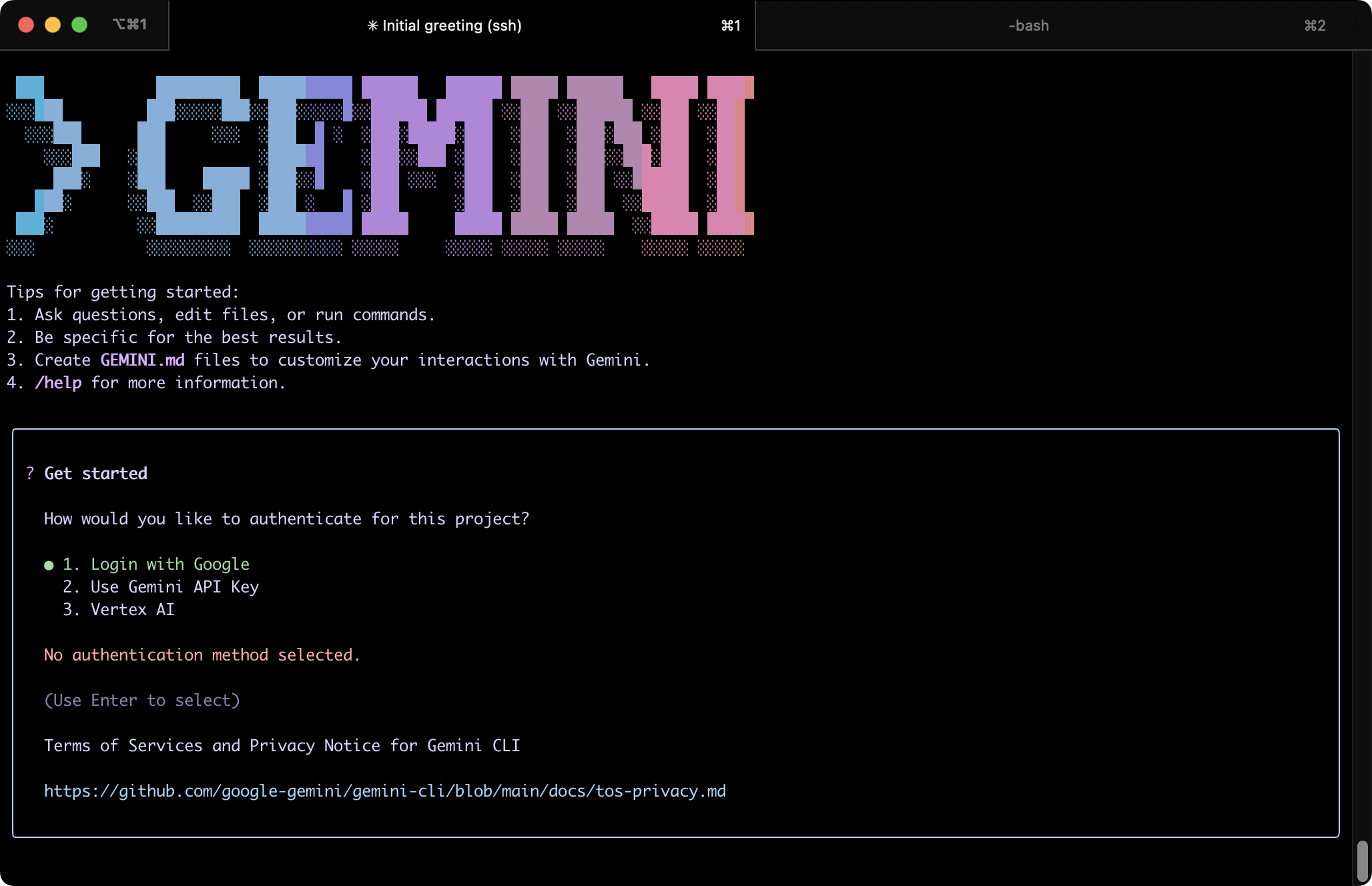
I chose “Login with Google”. Note that the authentication flow may require a retry if the first attempt times fails.
After authorization is done, Gemini CLI works!
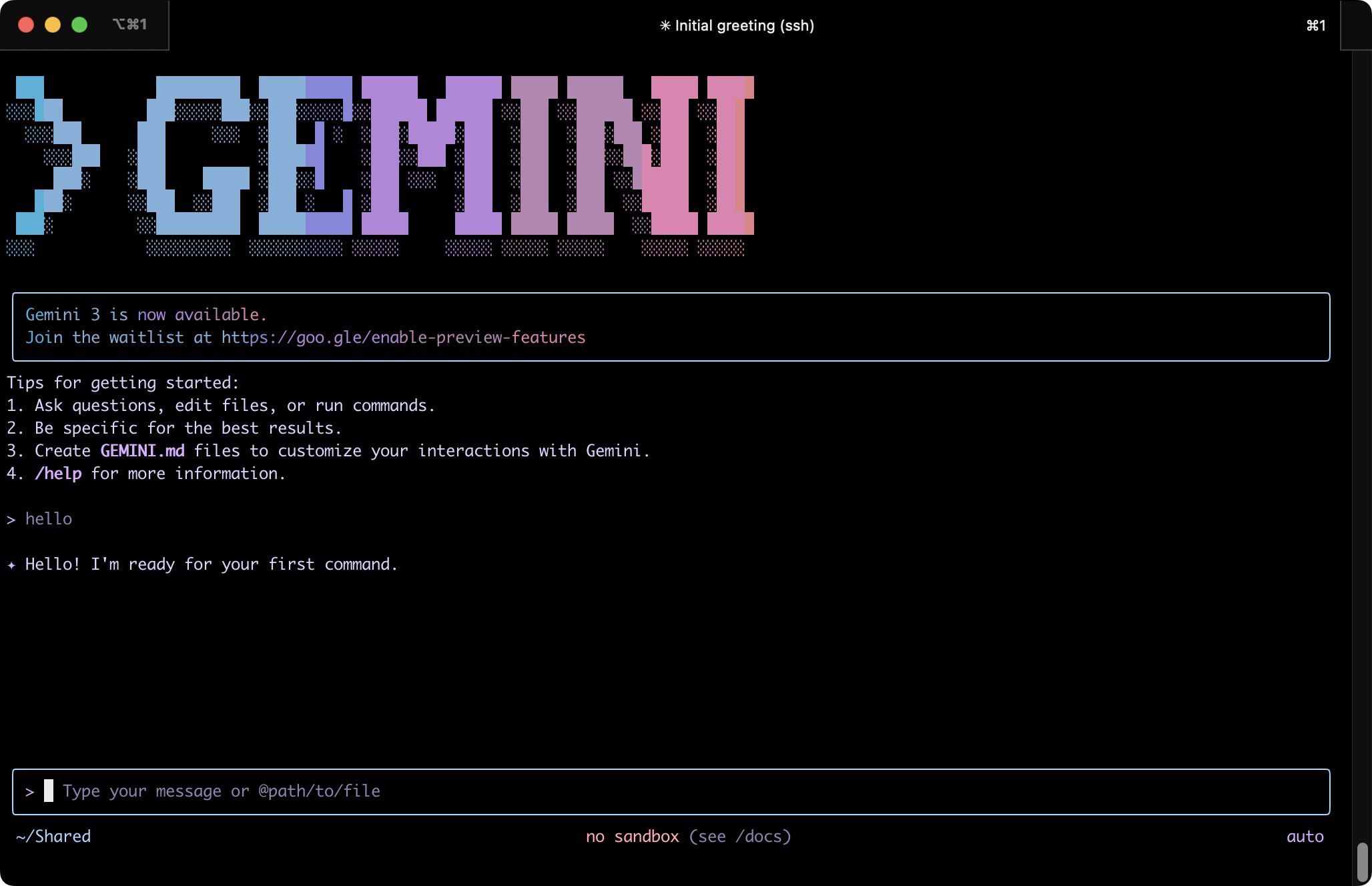
You can run Gemini in YOLO mode:
Automatically accept all actions (aka YOLO mode, see https://www.youtube.com/watch?v=xvFZjo5PgG0 for more details)
The alias you could define in .bashrc:
Codex CLI
Codex CLI is the AI dev tool from OpenAI/ChatGPT.
Let’s install it:
Run Codex CLI:
It will ask you to sign in, either via ChatGPT or by providing an API key:
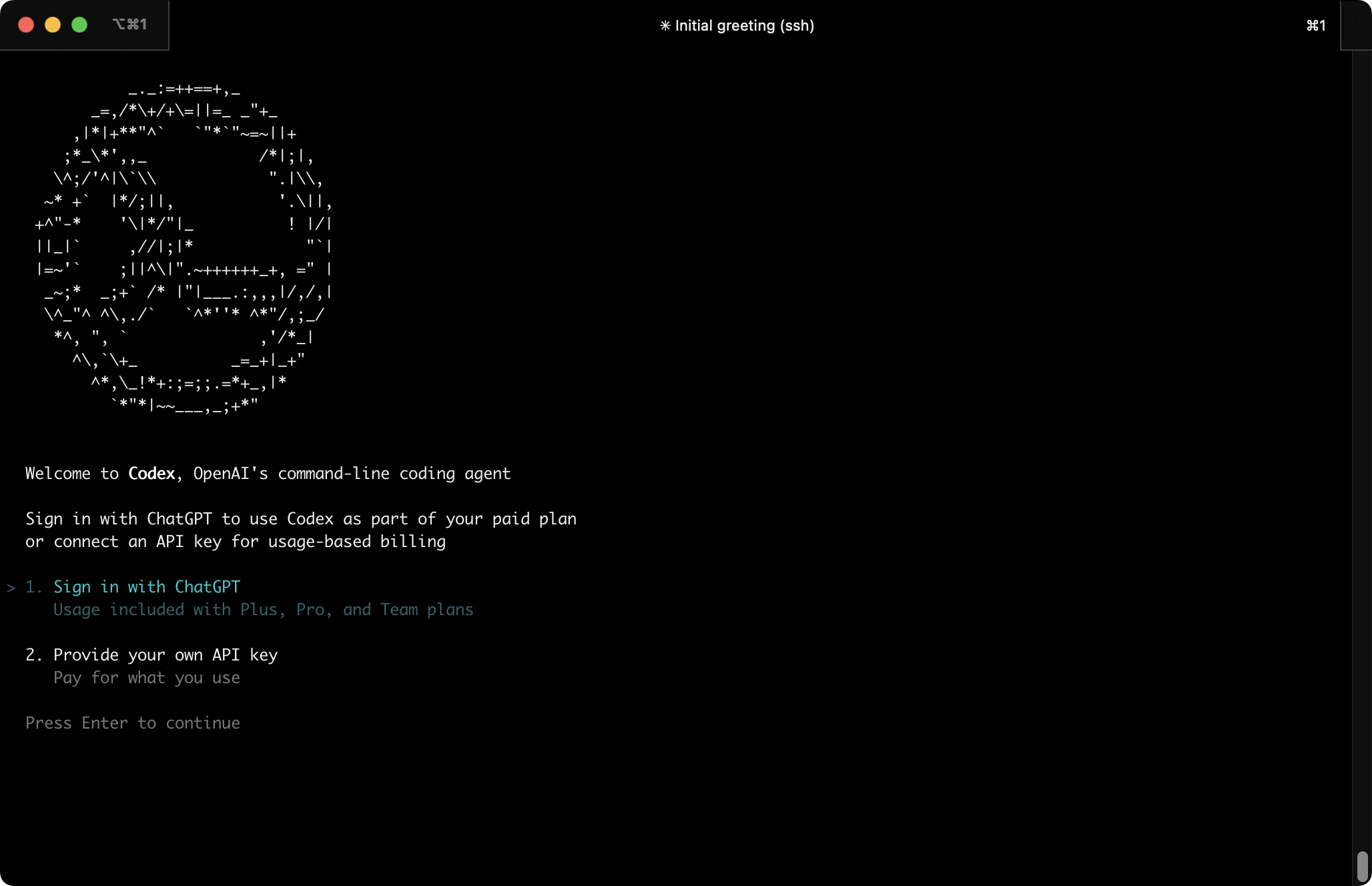
After that is done, Codex CLI is ready to work for you!
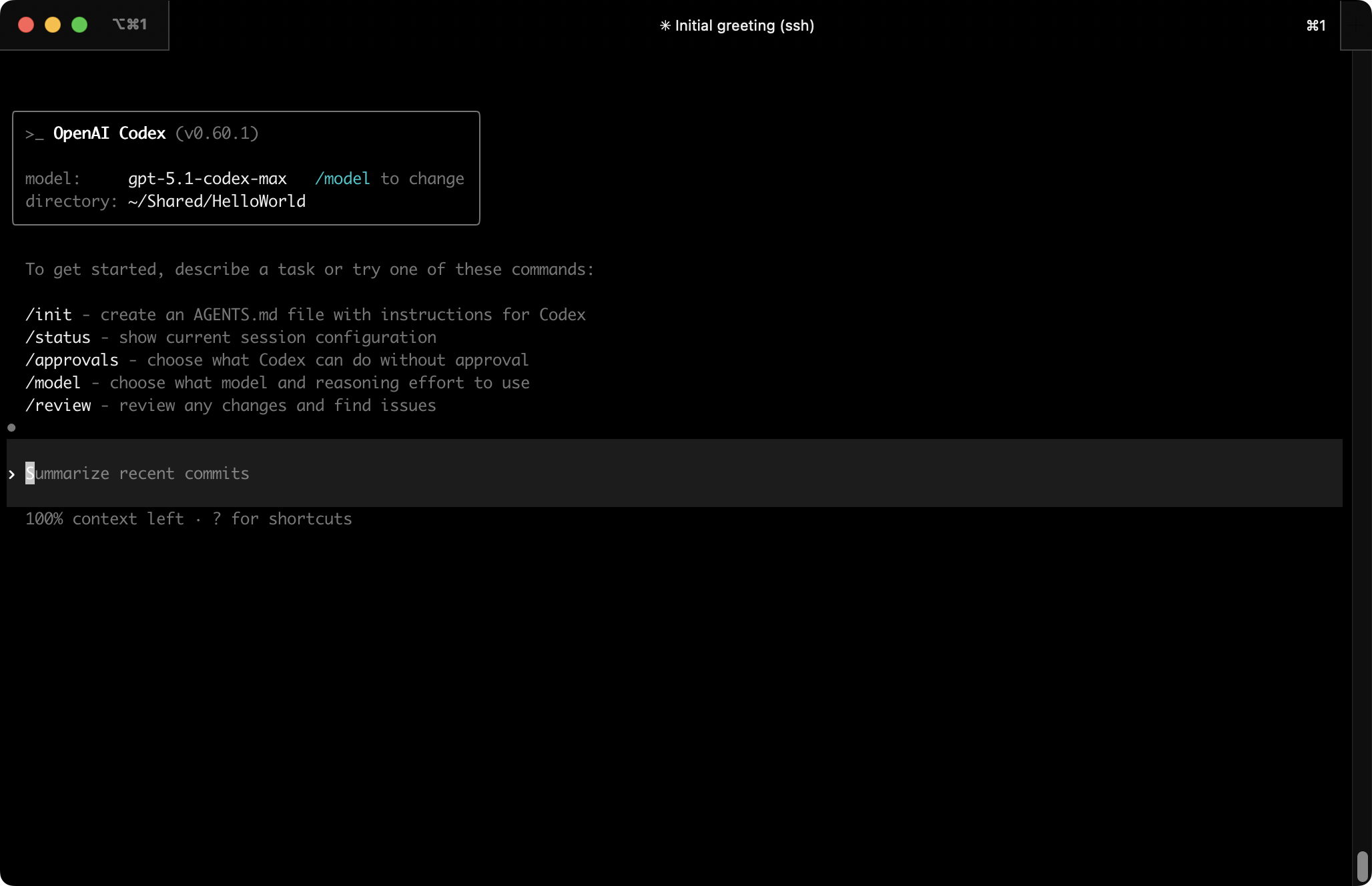
You can also run Codex in dangerous mode:
Skip all confirmation prompts and execute commands without sandboxing. EXTREMELY DANGEROUS. Intended solely for running in environments that are externally sandboxed
The alias for your .bashrc:
Other tools
There are several other great tools worth a mention:
Drop your favorite tools in the comments below!
VM cloning and snapshots
VM clones and snapshots allow you even more flexibility and isolation. You can use them to quickly and cheaply run new VMs for experiments and specific projects based on already provisioned instances. Use them frequently!
Lima offers several ways to take VM snapshots and/or clone VMs.
limactl clone
You can make a copy of an existing VM instance with limactl clone. The existing instance needs to be stopped first.
After all the initial VM setup is done, clone it and use it both as backup as well as a base for future instances:
Remember that after starting a new instance, you probably want to symlink the VM SSH configuration to your ~/.ssh/config.d/ directory, so ssh knows about it (See also “SSH into the VM”):
Multi-VM workflows
For maximum security and flexibility, consider using multiple VMs for different purposes and trust levels. This approach provides better isolation and lets you tailor each environment to specific needs.
Here are some suggested VM configurations:
You can quickly clone your base VM setup to create new instances for different projects using limactl clone, as described in the VM cloning section above.
One VM per project
For sensitive or production projects, consider dedicating a separate VM to each project. This prevents potential cross-contamination between projects and allows you to mount only the specific project directories you need.
When creating project-specific VMs, you can customize the mounted directories by editing the instance configuration. Either adjust the mounts section before starting the VM (by not using the -y flag), or edit ~/.lima/<vm_name>/lima.yaml after creation and restart the instance.
This approach also makes it easier to share VM configurations with team members. Instead of sharing entire disk images, you can distribute just the Lima template YAML file, which team members can use to spin up identical environments on their machines.
For automated setup, Lima supports provisioning scripts that run during VM creation. For more complex setups, consider using idempotent provisioning tools like Ansible to ensure consistent environments across your team.
Creating custom templates
If you find yourself repeatedly creating VMs with similar configurations, consider creating custom Lima templates. Templates are YAML files that define VM settings, and they can include other templates.
Custom templates are useful for:
You can create a custom template by copying and modifying an existing one from Lima’s template directory. Save your custom templates in ~/.lima/_templates/ and reference them when creating new VMs:
See the Lima templates documentation for more details on template syntax and available options.
Best practices
Here are some important security best practices to follow when using VMs for development:
✅ DO:
❌ DON’T:
Remember: The whole point of using VMs is isolation. When in doubt, create a new VM for risky experiments and delete it afterwards.
I hope this guide helps you get started quickly and right-footed!
As always, please leave feedback, questions and ideas in the comments below.
Have fun coding! 🛠️
Special thanks to Ilya Lukyanov and Overflo for reviewing drafts of this post and making great suggestions. 🙏

相關文章